For teachers

Approve the right requests, and keep every student on track.

Review requests from your roster, message families in context, and keep lesson plans and work samples in one place.

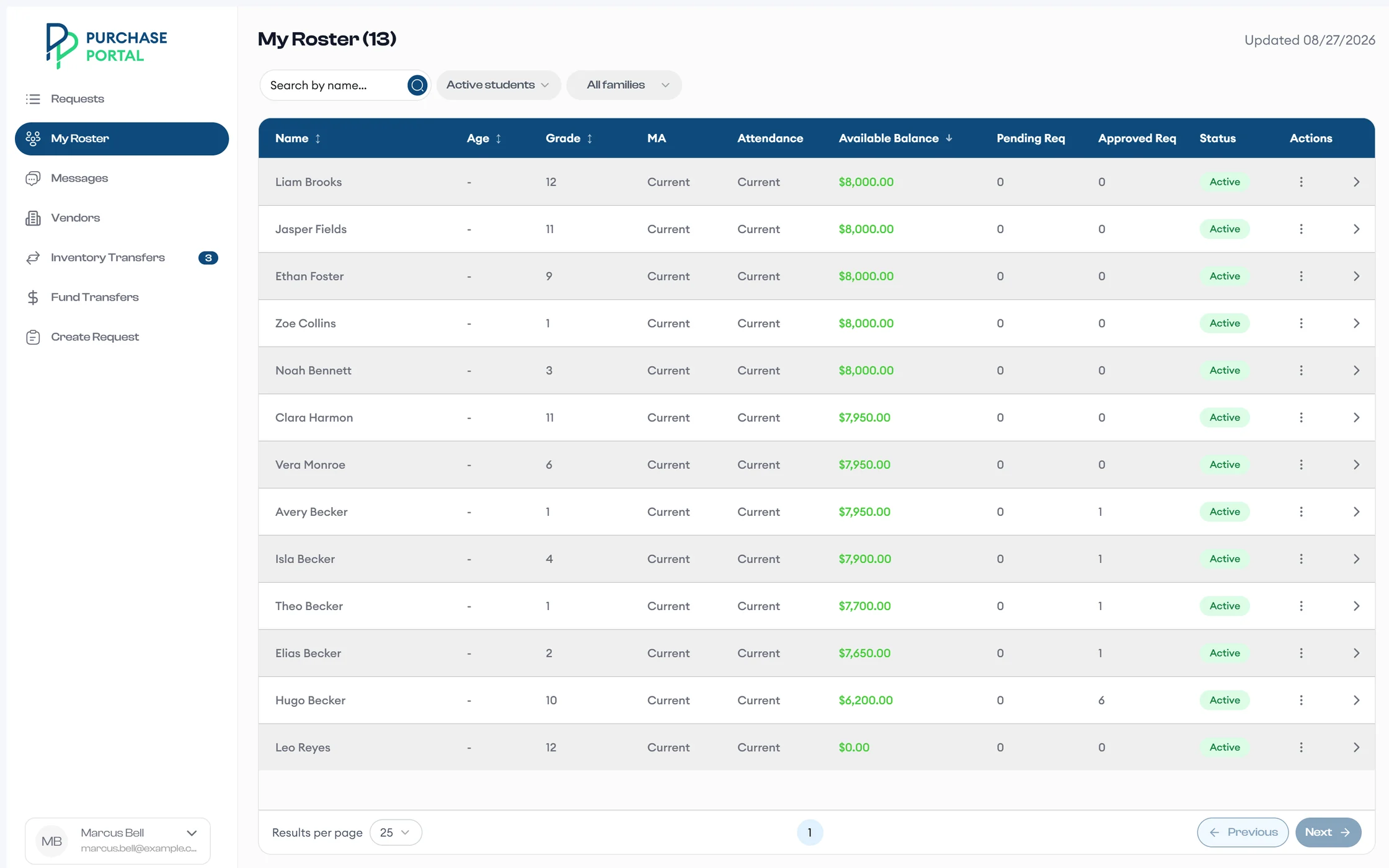
My Roster lists a teacher's 13 students with grade, available balance, and pending and approved request counts.
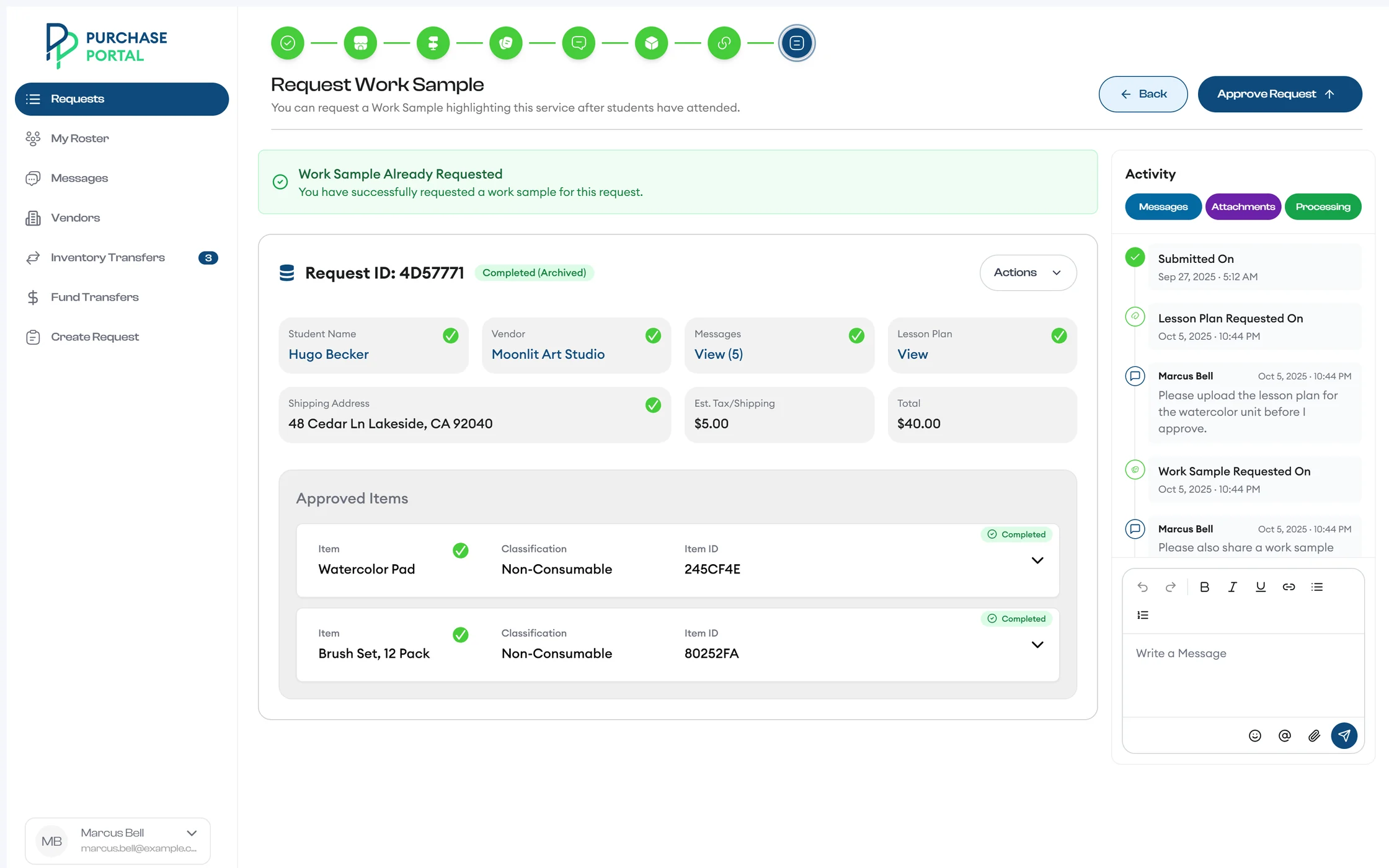
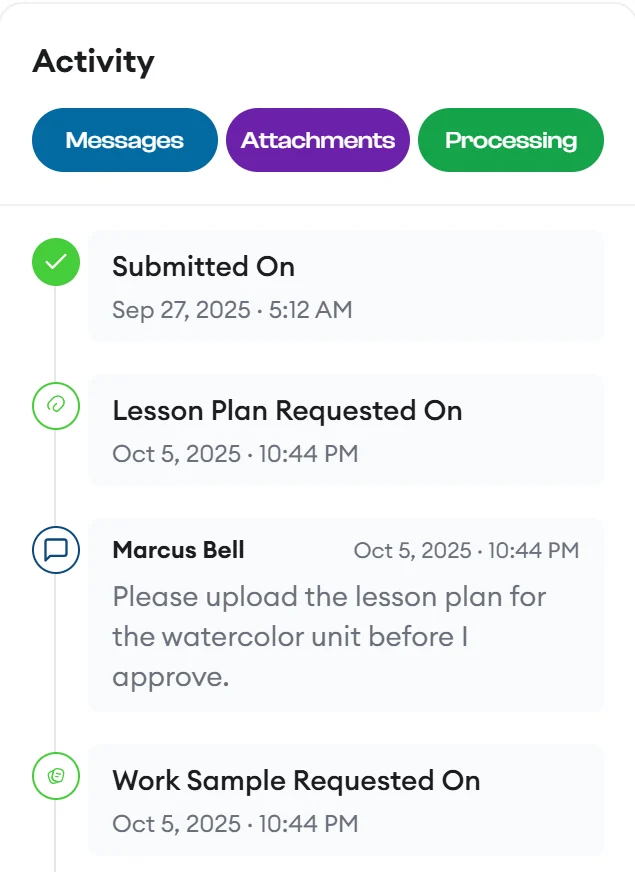
A request's activity timeline shows a lesson plan and a work sample requested, each with the teacher's message.
Messagesin context

A day with Purchase Portal

Fewer emails, faster decisions, clearer records

Review queue

See everything waiting for your review

Requests sorts what families on your roster submit into Pending, Approved, Lesson Plans, Work Samples, and All.

Every row shows the student, vendor, submission date with days waiting, items, who submitted it, and the total. Filter by request type, urgency, or family.
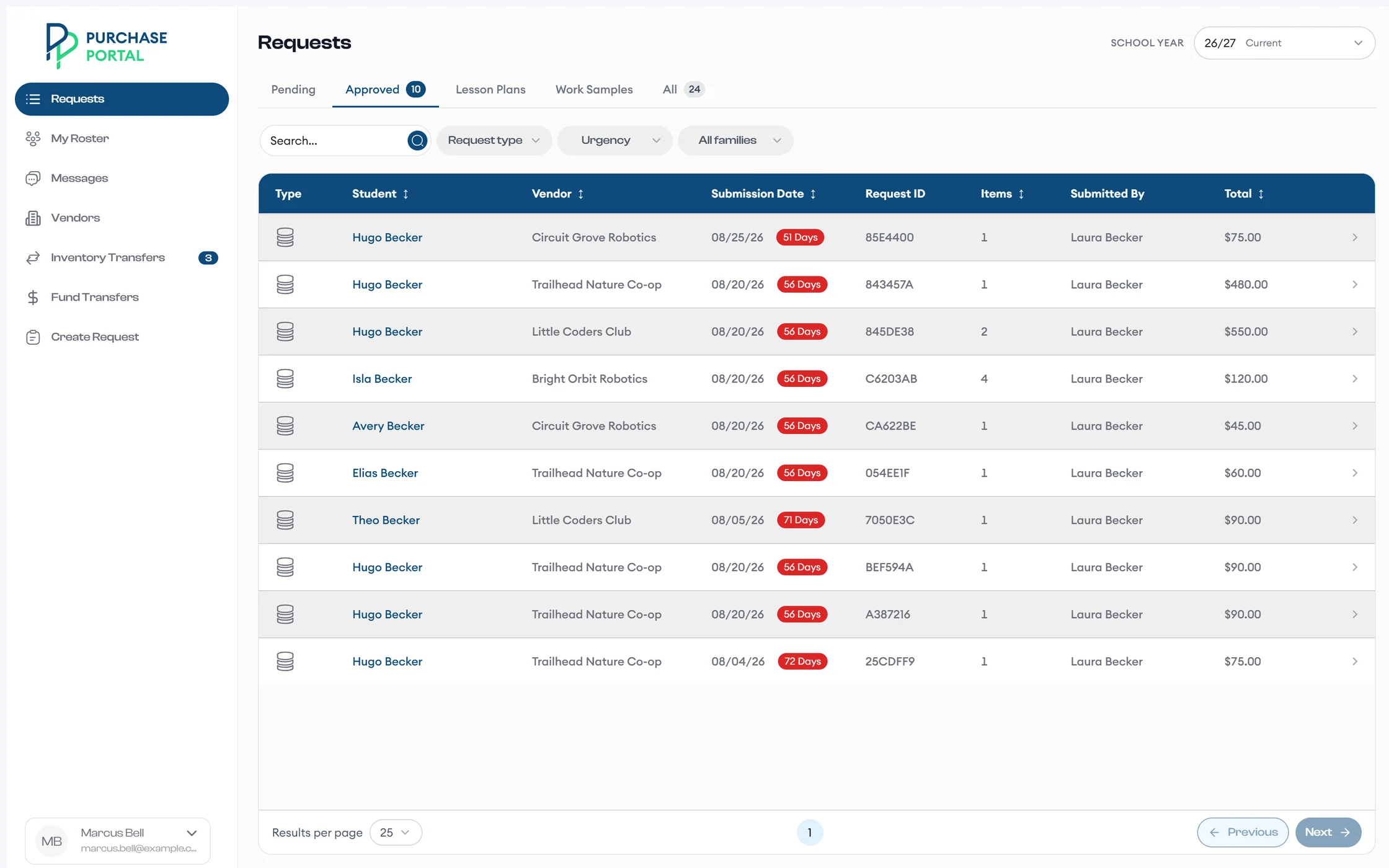
A teacher's Requests list on the Approved tab, with each student, vendor, submission date and days waiting, request ID, item count, who submitted it, and the total.
Approve, decline, or escalate

Decide with the whole request in front of you

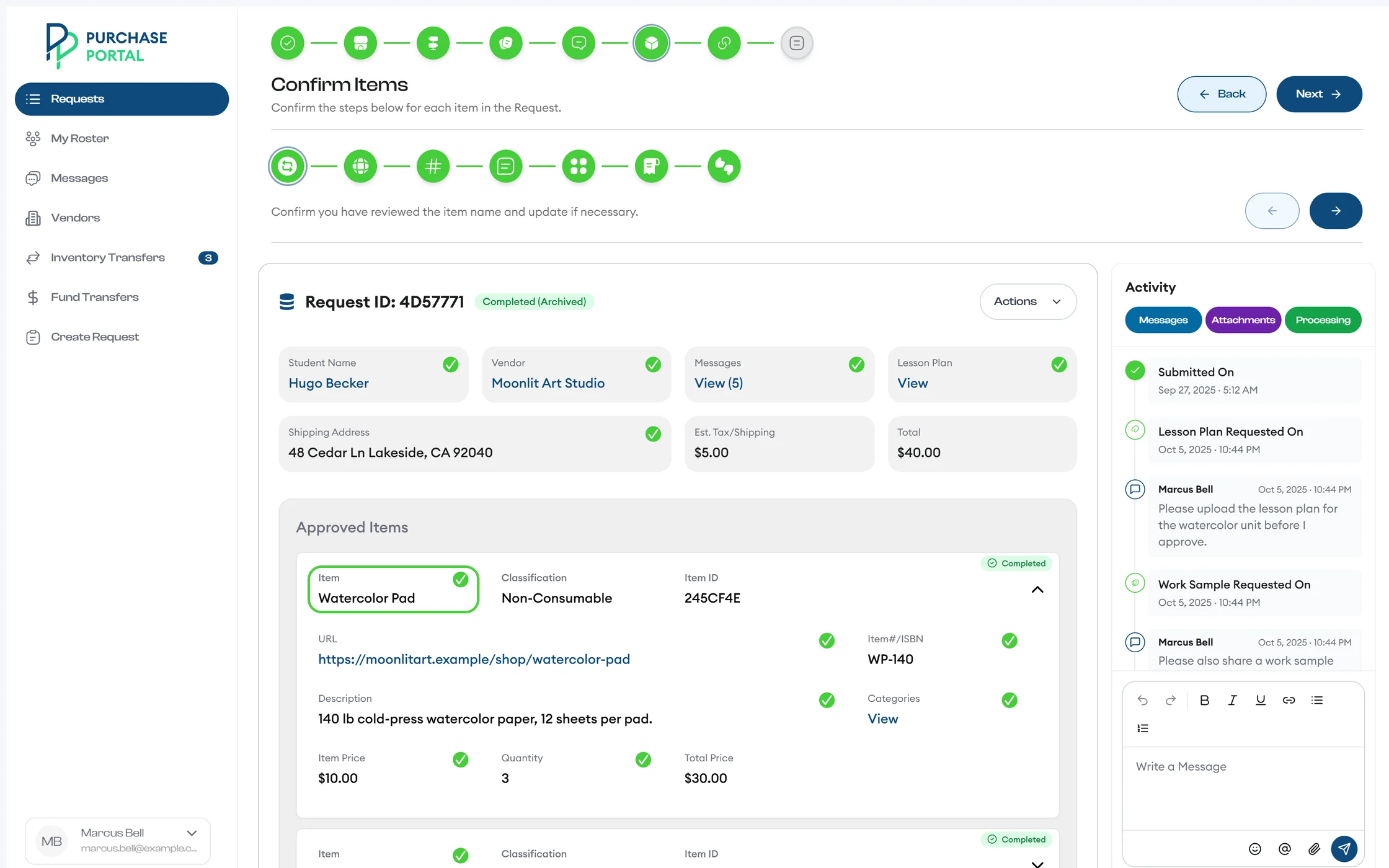
Open a pending request, and a guided review walks you through each check: student compliance, vendor, shipping address, lesson plan, messages, and every item on the request. Then approve it.

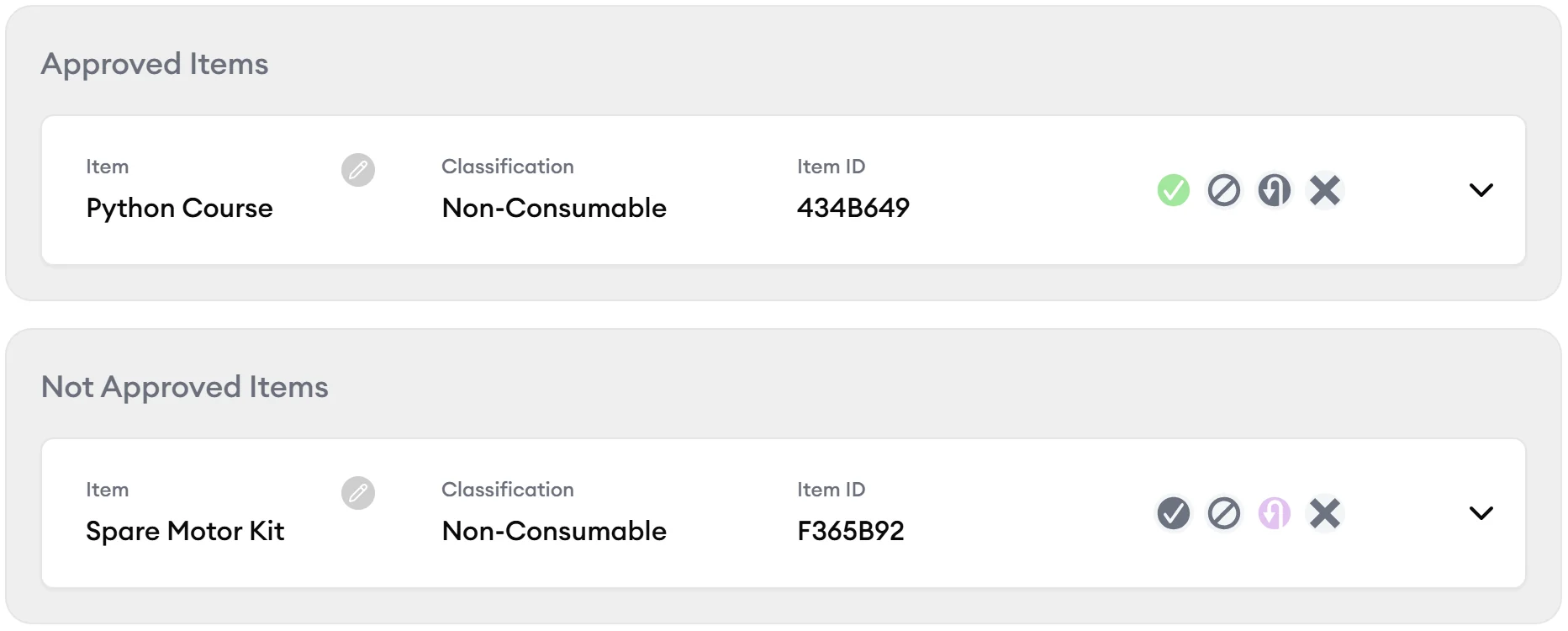
Approve some items and not others; the request lists them separately. When someone else should decide, escalate it to another reviewer with a message that explains why.

The guided review on its Confirm Items step: a row of completed review steps, item checks for name, link, ISBN, description, categories, price, and quantity, and the request's activity timeline.
A request lists one item under Approved Items and another under Not Approved Items.
My Roster

Know every student on your roster

My Roster shows your students, the last import date, and each student's details, request counts, and inventory.

My Roster shows each student's grade, available balance, pending and approved request counts, and status, with the date of the latest roster update.
Lesson Plans

Keep lesson plans and work samples together

Ask for a lesson plan or a work sample from inside the review. Each one lands in the request's activity timeline with your message.

Track what you asked for under Lesson Plans and Work Samples, and view, download, or delete uploads.

The Request Work Sample step confirms a work sample was already requested, next to the request details and an activity timeline with the lesson plan and work sample requests.
Fund Transfers

Move funds between students with a clear trail

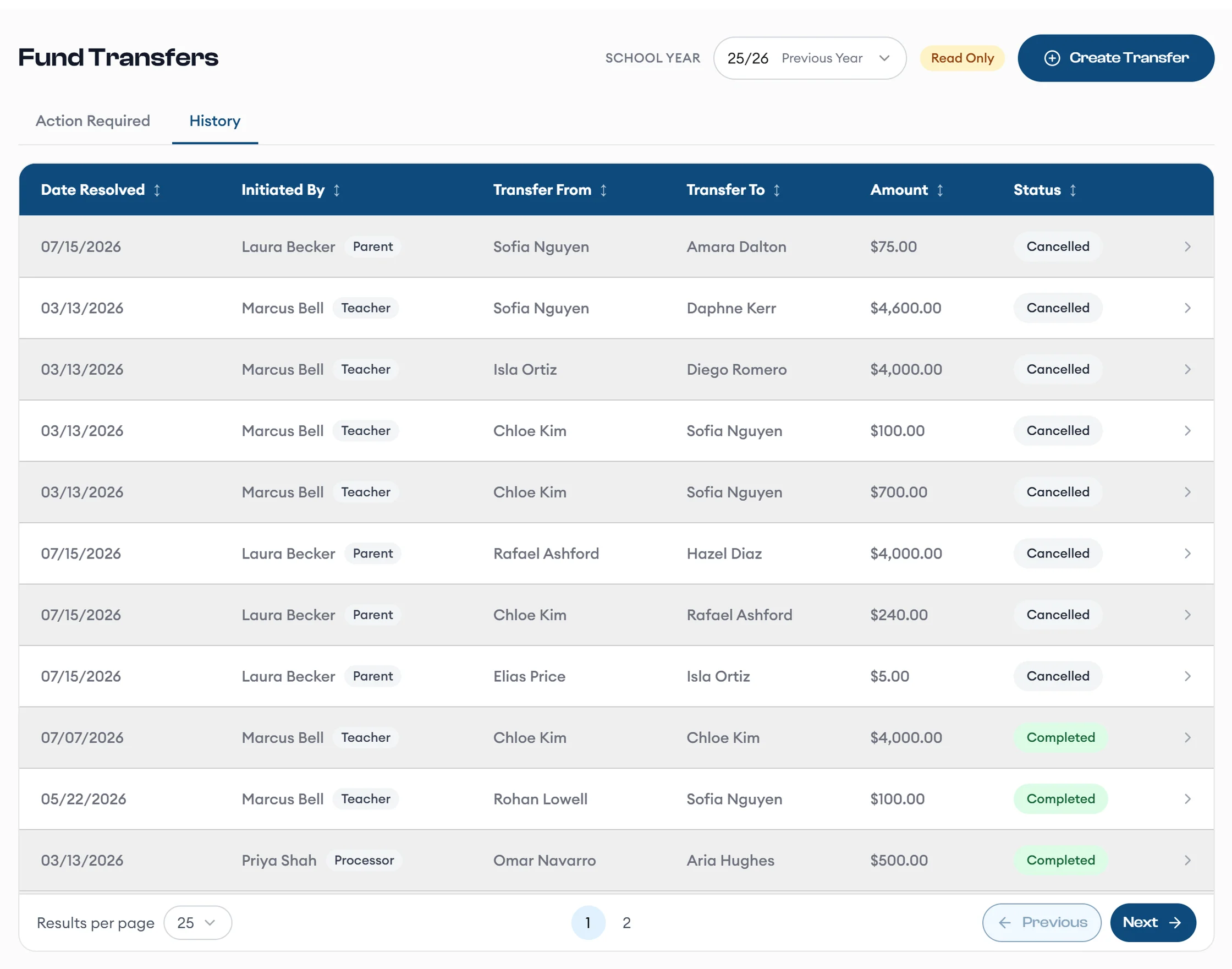
Review parent-initiated transfers in Action Required, or start one with Create Transfer. Every transfer keeps who started it and how it ended.

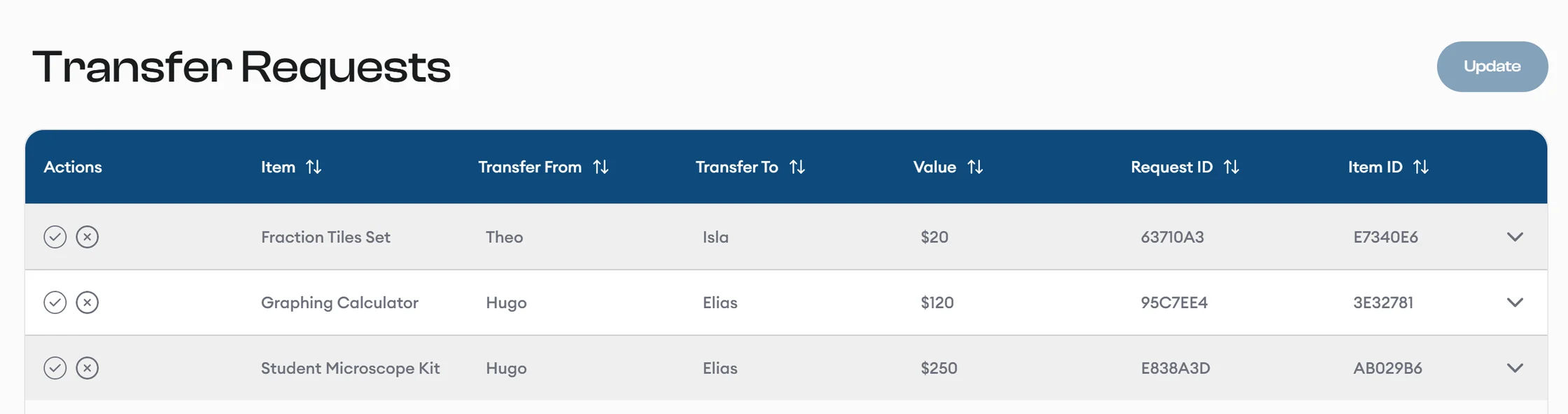
Moving items instead? Approve item transfers between students in bulk under Inventory Transfers.

A fund transfer history shows who started each transfer, which students it moved between, the amount, and whether it completed or was cancelled.
Inventory transfer requests list three items moving between siblings, each with accept and reject buttons and an Update button to apply them together.

More of what your workspace handles

  • Requests you create Use Create Request for a student or for yourself. Requests you submit skip the pending step and go straight to approved.
  • Escalation with context Send a request to another reviewer, with your reason attached.
  • Vendor directory Browse the same approved vendors families see under Vendors.
  • Messages Message families about a specific request, with unread counts and typing indicators.

What happens after you approve

  1. You You approve The request moves to Approved.
  2. Processor It joins the processing queue Processors pick it up in Approved To Process.
  3. Vendor The vendor gets a PO Or the processor pays by credit card.
  4. Family The family stays informed Email and SMS updates go out at each status change.

Questions teachers ask

What happens after I approve a request?

It moves to the processors' Approved To Process queue, and the family gets an email and SMS update.

Can I hand a request to another reviewer?

Yes. Escalate it, and add a message that explains why.

Can I create a request for a student?

Yes. Use Create Request. Requests you submit skip the pending step and go straight to approved.

Who reviews fund transfers between students?

You do. Parent-initiated transfers wait in Action Required under Fund Transfers, and a processor completes the ones you approve.

Which students can I see?

Only the students you're responsible for, along with their requests and inventory.

See the teacher workspace with sample data

Request a demo for your program, and we walk your team through review, approval, and transfers.

Request a demo