Vendor directory
Find vendors your program already approved
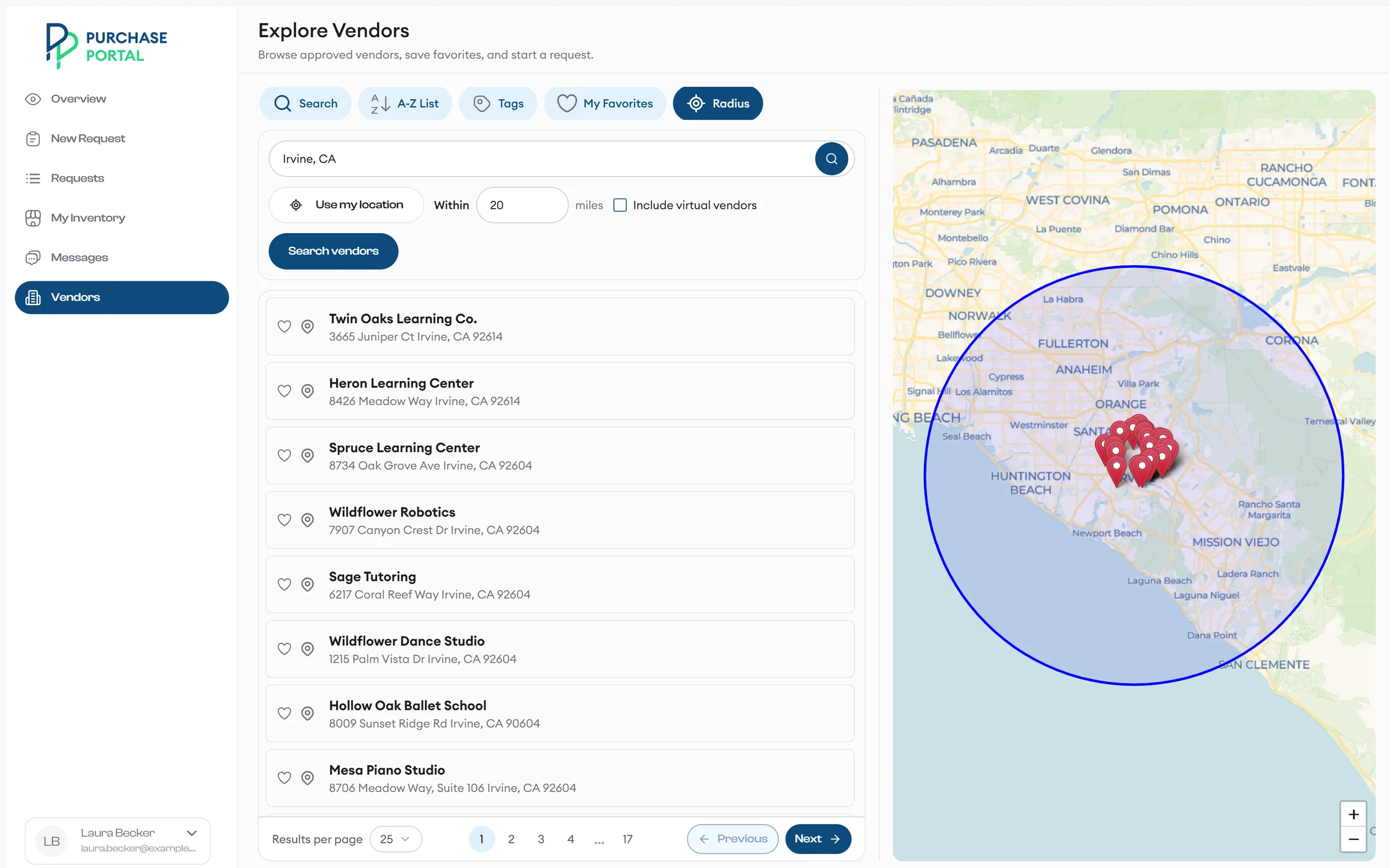
Search by name, Tags, A-Z List, or Radius from your location, include virtual vendors, and see every result on a map. Keep the ones you use under My Favorites.
Create a request in minutes, follow every status change, and see each student's funds before you submit.
A day with Purchase Portal
Search by name, Tags, A-Z List, or Radius from your location, include virtual vendors, and see every result on a map. Keep the ones you use under My Favorites.
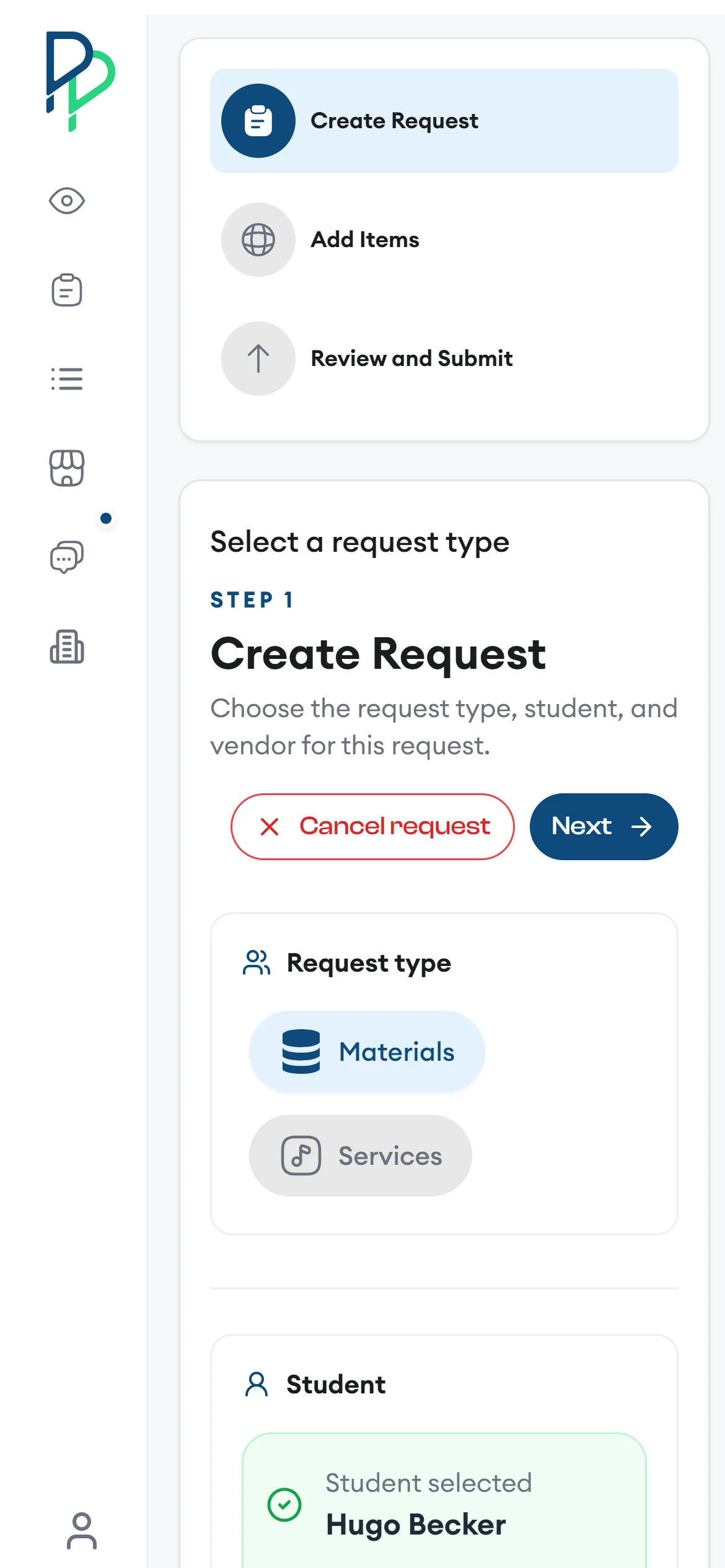
The New Request wizard takes you one step at a time. Choose Materials or Services, then pick the student and the vendor.
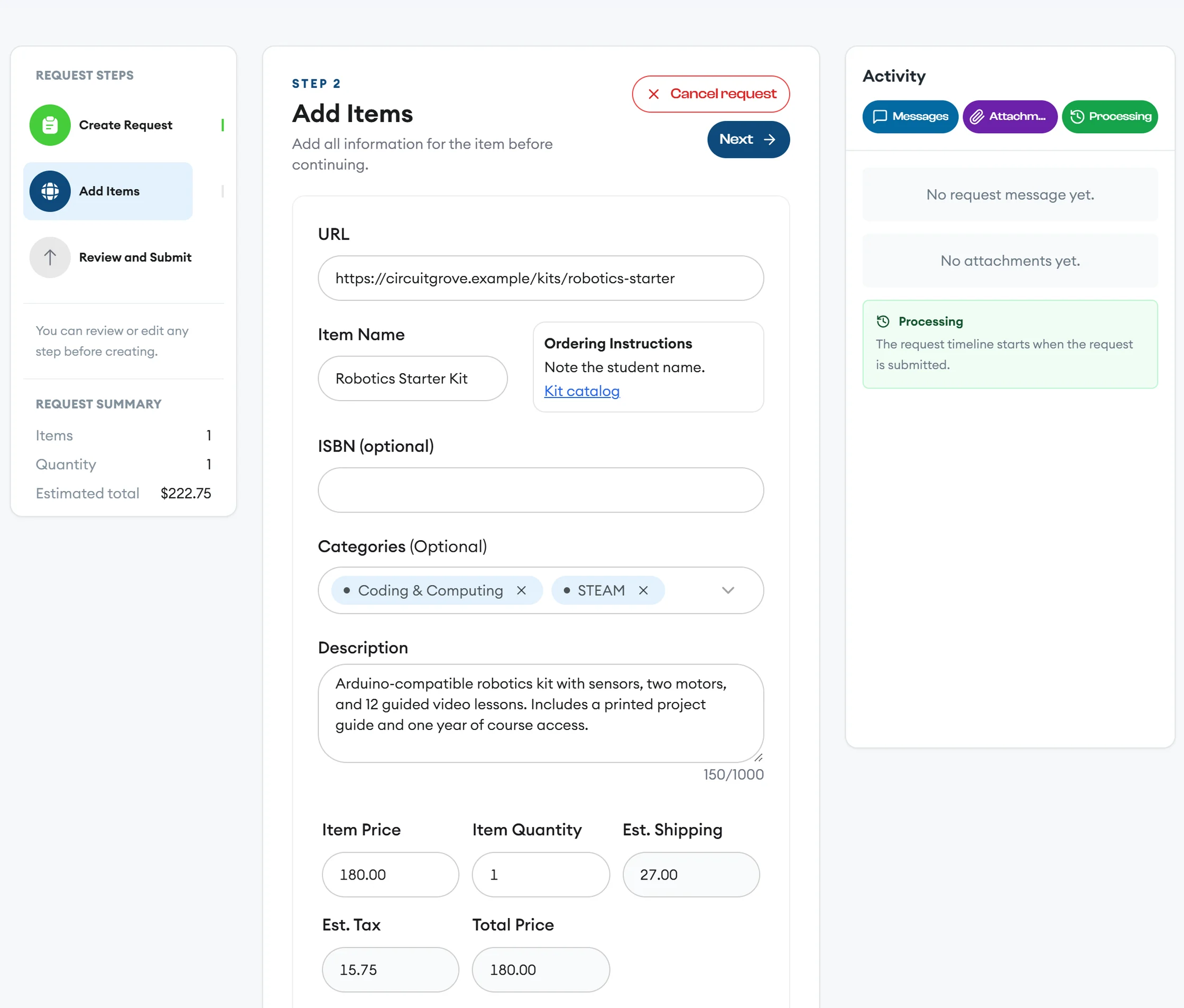
Paste a product link into URL on the Add Items step, and smart product fill adds the item name, description, price, ISBN, and a suggested category. The Request Summary keeps a running estimated total.
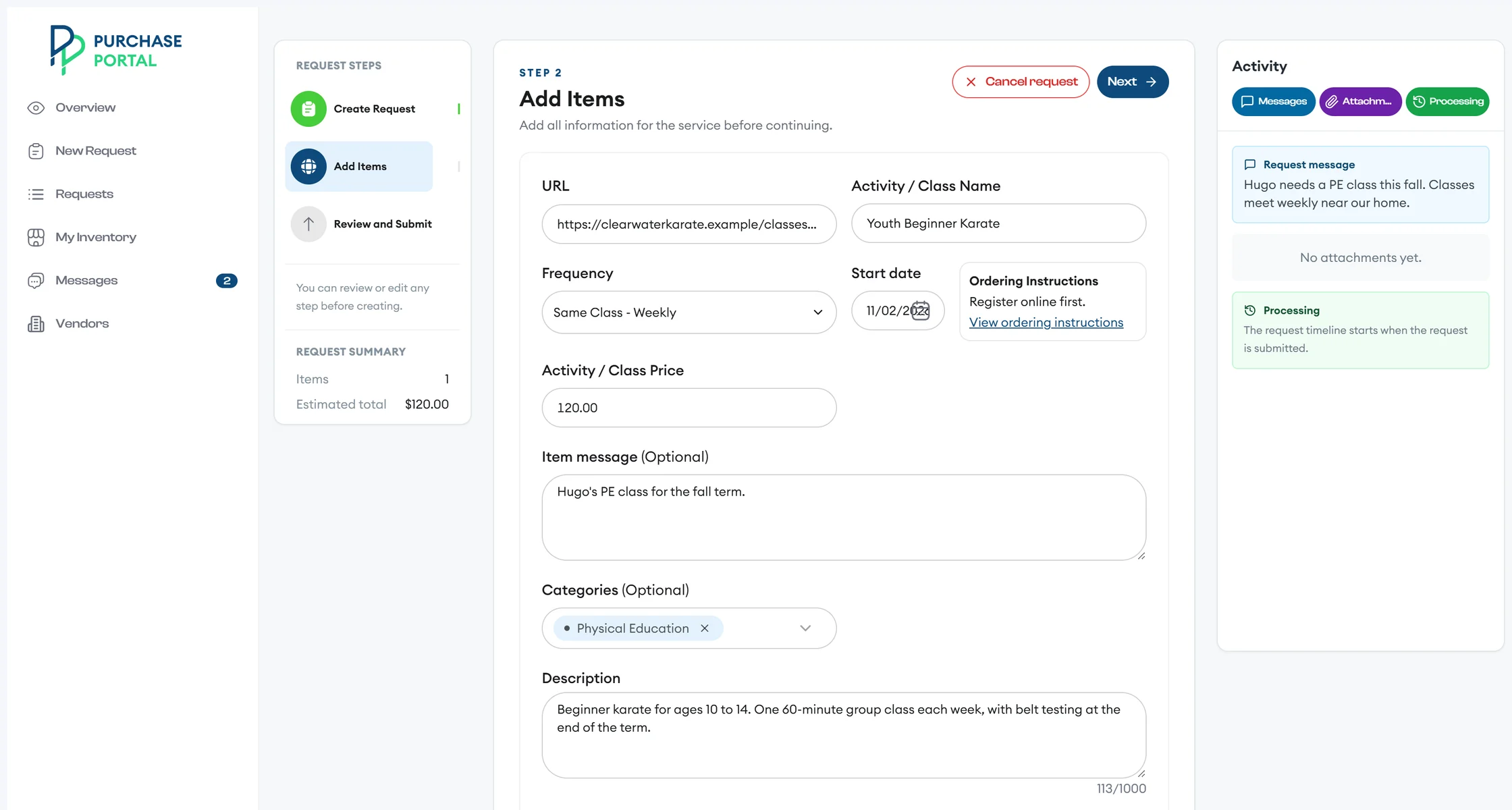
Switch the request type to Services to request a class. Choose a Frequency, such as one class each week, pick a Start date, and enter the Activity / Class Price.
The vendor's Ordering Instructions sit right next to the form.
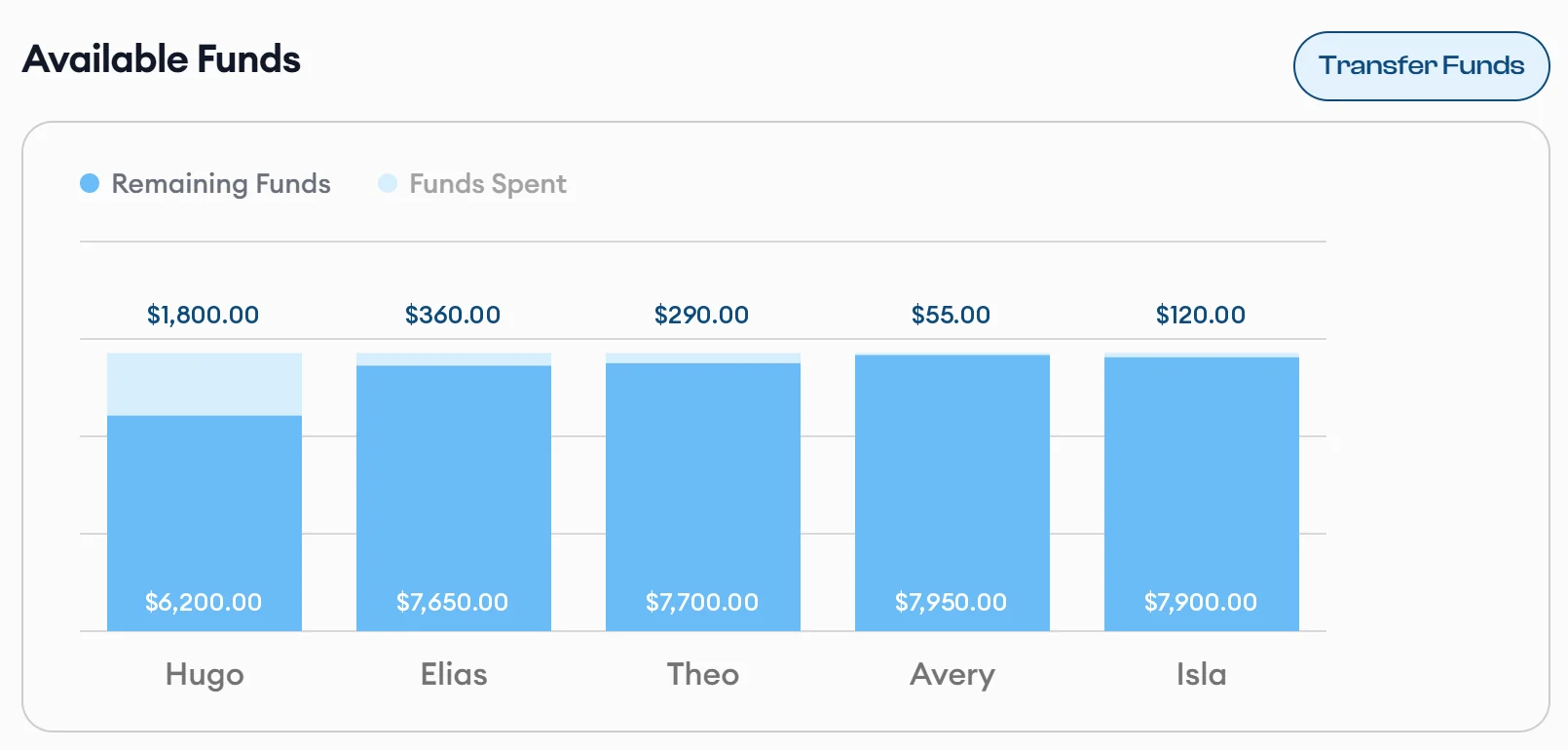
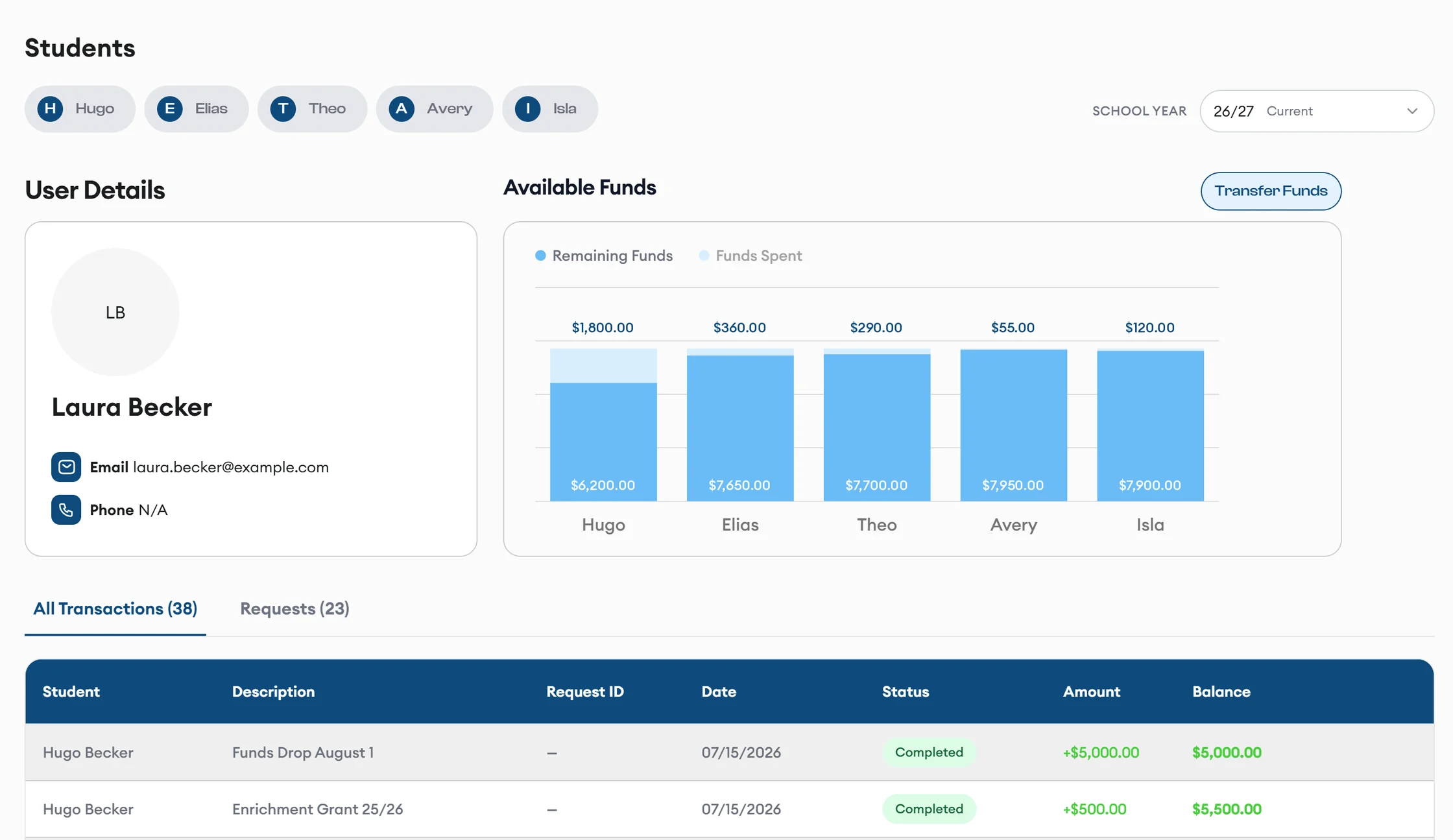
Overview charts each student's remaining funds and funds spent, with every transaction and running balance below. While you build a request, you see the student's Pending, Used, and Available Funds.
Need to move money between your students? Choose Transfer Funds, and a teacher reviews the transfer.
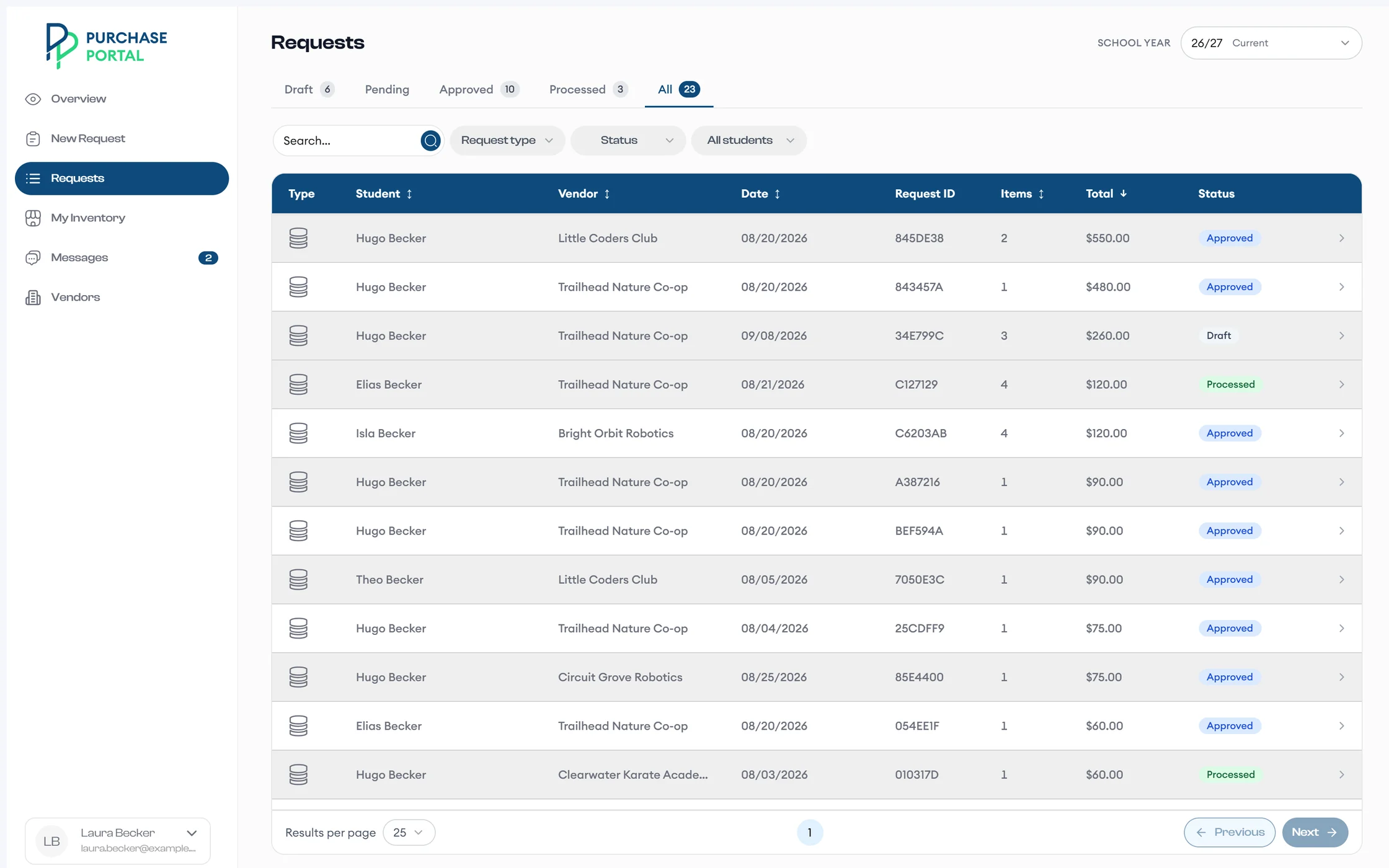
Requests sorts your orders into Draft, Pending, Approved, Processed, and All.
Filter by request type, status, or student, and sort by student, vendor, date, items, or total.
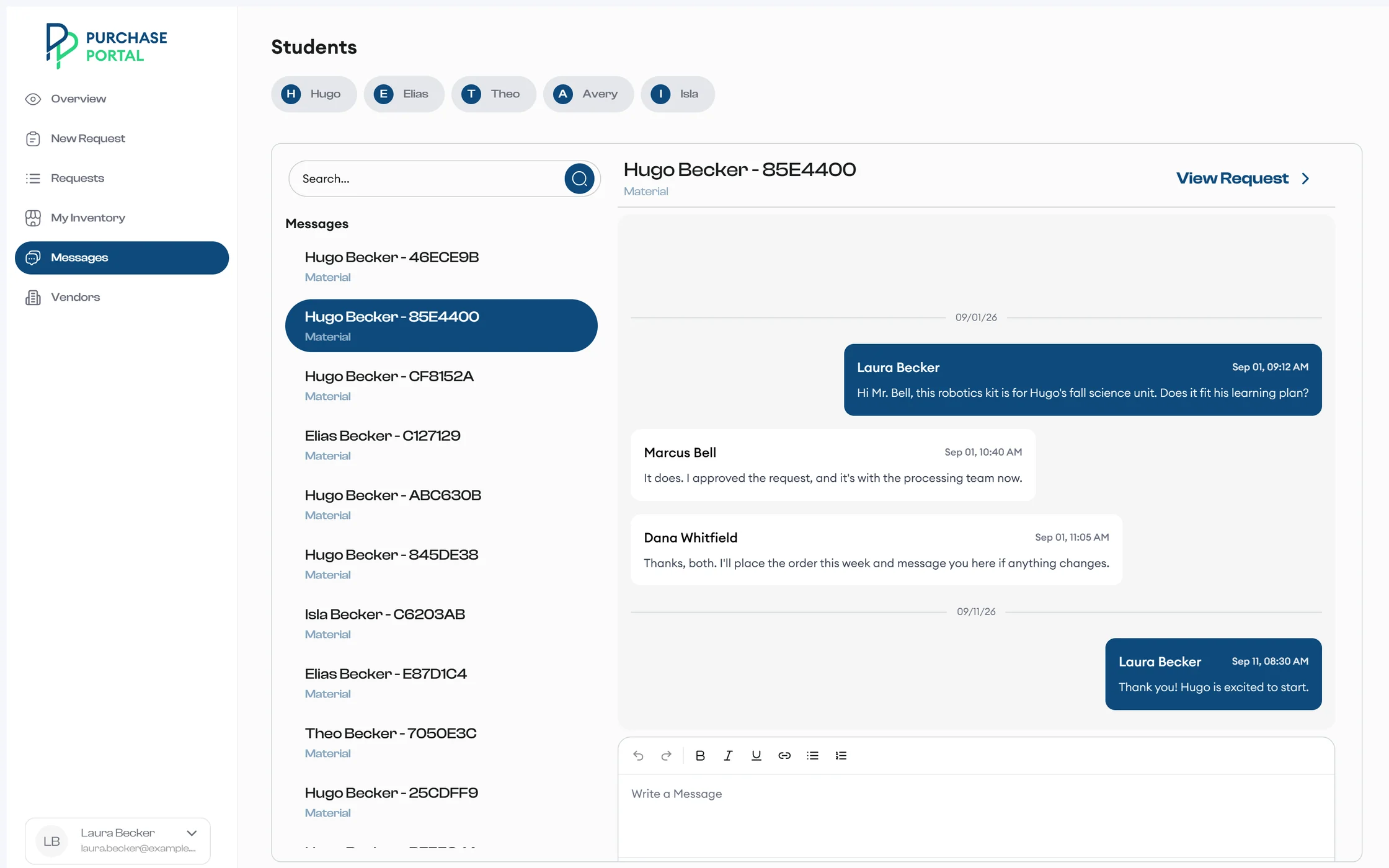
Chat with teachers and processors about a specific request under Messages. Unread counts show what's new.
Email and SMS updates tell you when a request is approved, declined, cancelled, or processed.
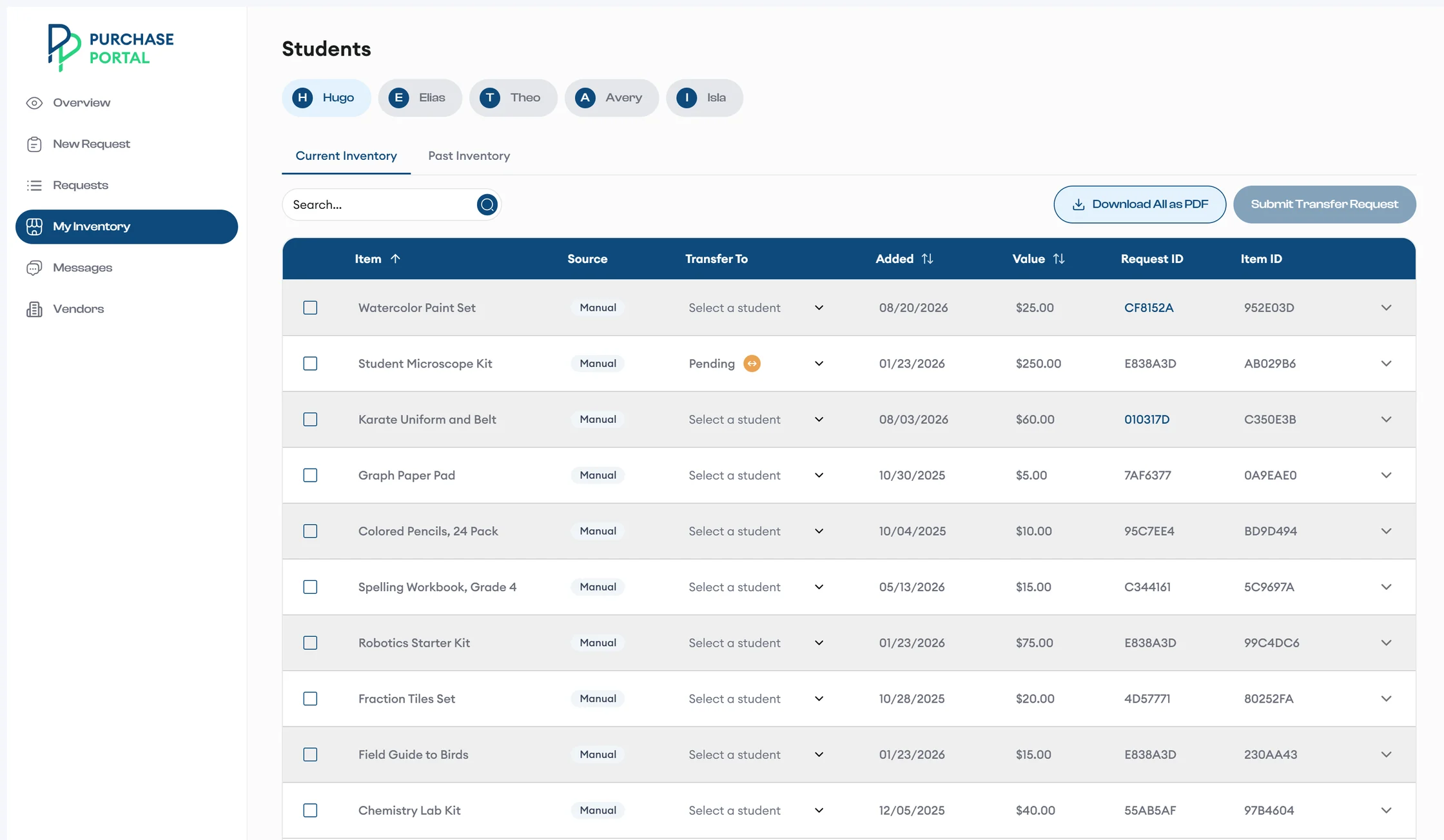
My Inventory shows current and past items for each student. Download a PDF manifest with Download All as PDF.
Moving an item to a sibling? Pick the student under Transfer To and choose Submit Transfer Request.
Materials, such as books, kits, and supplies, and services, such as classes and activities, from vendors your program approved.
Each student's Available Funds appear while you build a request, next to Pending and Used.
Yes. Save it as a draft, and it waits in the Draft tab under Requests until you submit it.
Your student's teacher reviews it. You get an email and SMS update when it's approved, declined, or processed.
Yes. Request a transfer from Overview. A teacher reviews each transfer before it happens.
No. Paste a product link into URL on the Add Items step, and the app fills in the name, description, price, ISBN, and a suggested category.
Share this page with your school, or ask your program's staff to request a demo.